QR Codes
ADVICE FROM THE CISO ON THE USE OF QR CODES
QR codes have become a fairly common practice in our everyday lives and are now being used in our work. It’s important that we familiarize ourselves with their associated risks and vulnerabilities and learn how to protect ourselves when both using and creating them.
The Office of the Chief Information Security Officer has compiled tips on how to appropriately use them in your work including ways to mitigate risks and stay safe.
Self-help tools to generate QR codes for external sites
Once you’ve reviewed the CISO guidance above, you can use the self-serve tools below to create QR codes, especially if your QR code needs to point to a destination outside www.ualberta.ca. These tools help you create and manage QR codes quickly while staying aligned with safe QR code practices.
These tools provide:
- More flexibility: Link to any non-ualberta.ca destination (event platforms, vendor tools, social pages, etc.).
- More control: Create, test, regenerate, and update your QR codes on your own timeline.
- More options: Choose different formats, sizes, and use cases to match your material.
- Fast + self-serve: Generate a QR code in minutes - whenever you need it (no waiting).
Google Chrome
Anybody with a University of Alberta CCID is able to generate a QR code through their Google Chrome browser. To generate a QR code:
- Open Chrome.
- Navigate to the page you want to share.
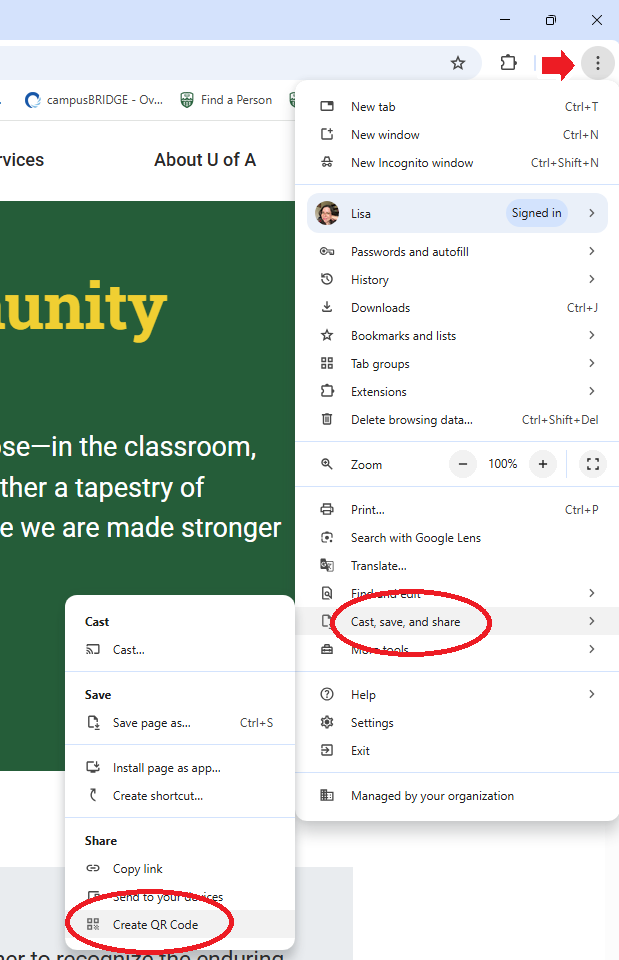
- Click on the three vertical dots at the upper right corner of the Chrome window to go the the Chrome main menu. Select “Cast, save, and share” and then click on “Create QR code”.
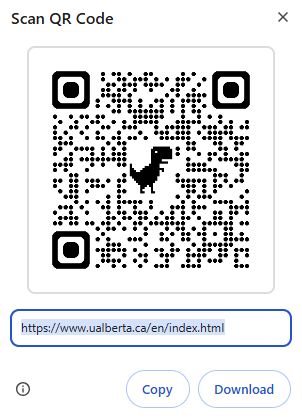
- Chrome will generate a QR code. From here you can choose to either copy the QR link or download it to use in your materials.
Adobe
You can generate QR codes through Adobe If you have an Adobe Express account. To generate a QR code:
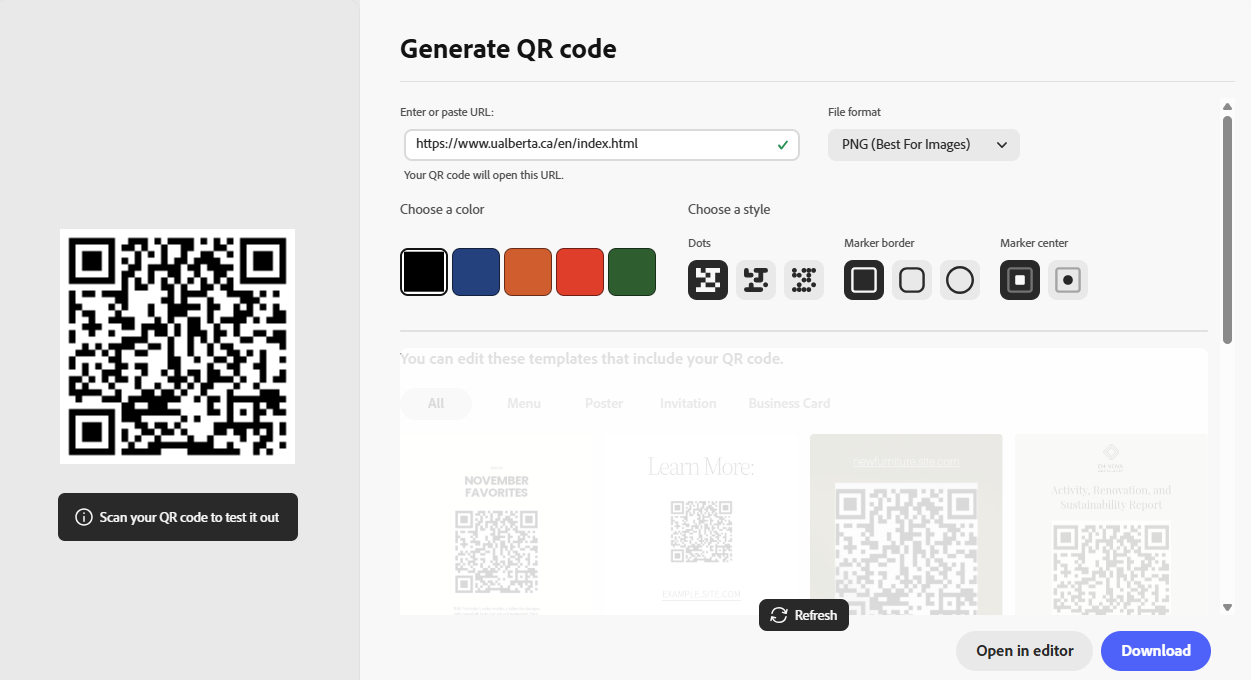
- Go to the Adobe free QR code generator.
- Enter your URL and click “Generate QR code”.
- Customize the style and color of your design.
- Download the QR code image in your preferred file type.
Canva
You may have access to generate QR codes through Canva if you have a free Canva account. To generate a QR code:
- Login to Canva.
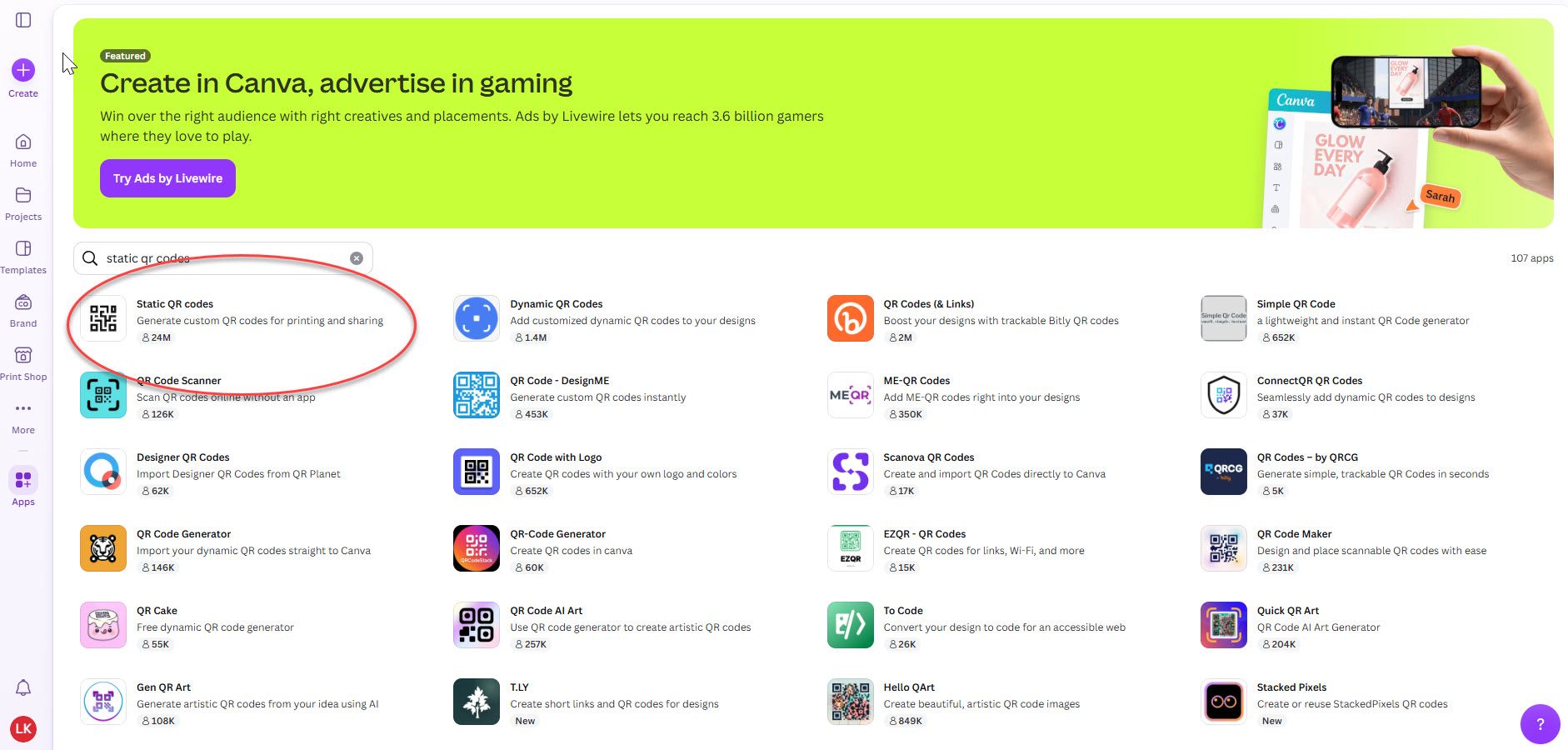
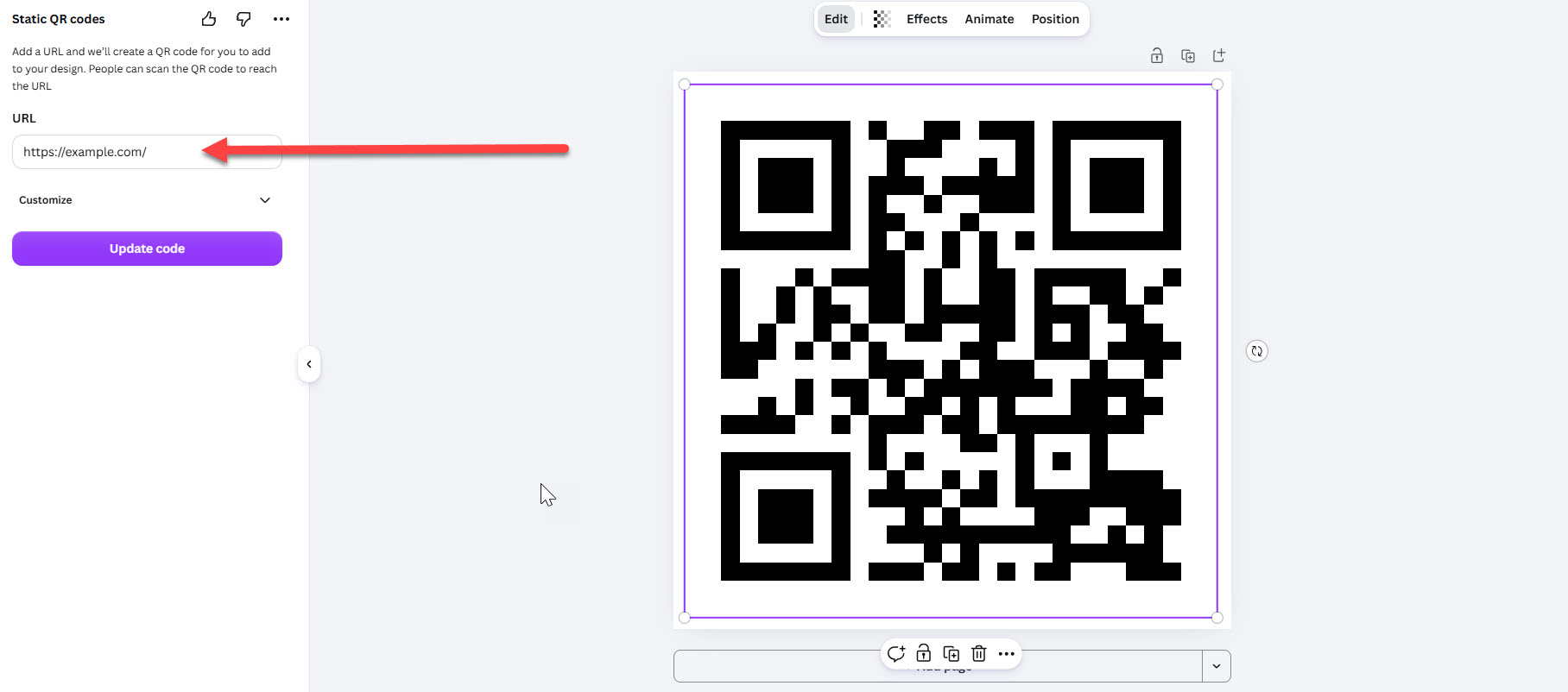
- Click on the Apps tab in the left sidebar and search for "static QR codes". Select the Static QR codes app.
- Select “Use in existing design” if you want to add the QR code to an existing project. Otherwise select “use in new design”. If you select “use in a new design”, select the size of design you want to create. Click “create new design”.
- Enter your URL and click “Generate code”.
- You can now more, resize or edit the code in your design.
- To download your QR code, click the “Share” button at the top right corner, then click “Download” to download QR code image in your preferred file type.
Employees
Technology Support
https://www.ualberta.ca/en/toolkit/digital-and-creative/index.html